Learning Outcomes
i. Comprehend the concept of computer bus and its role in connecting hardware components
ii. Identify and describe the functions of AGP (Accelerated Graphics Port), PCI (Peripheral Component Interconnect), and IDE (Integrated Drive Electronics) as essential computer interfaces
iii. Understand the data transfer capabilities and limitations of each interface
iv. Recognize the impact of these interfaces on overall system performance
Introduction
The heart of a computer is not just a collection of powerful processors and memory, but also a network of interconnected components that work in unison to achieve a common goal – processing data and delivering information. This intricate network relies on specialized interfaces, each playing a unique role in facilitating communication between the various hardware elements. This lesson delves into the world of computer interfaces, focusing on three crucial components: AGP (Accelerated Graphics Port), PCI (Peripheral Component Interconnect), and IDE (Integrated Drive Electronics).
i. Computer Bus: The Backbone of Communication
The computer bus serves as the backbone of communication within a computer system, providing a pathway for data transfer between various components. It is the central highway through which data travels from one device to another, ensuring the smooth operation of the entire system.
ii. AGP: The Graphics Accelerator's Lifeline
The Accelerated Graphics Port (AGP) is a dedicated bus specifically designed for high-performance graphics cards. It provides a direct and high-speed connection between the motherboard and the graphics card, enabling the fast transfer of graphics data required for demanding applications such as video editing and gaming.
iii. PCI: The Versatile Peripheral Connector
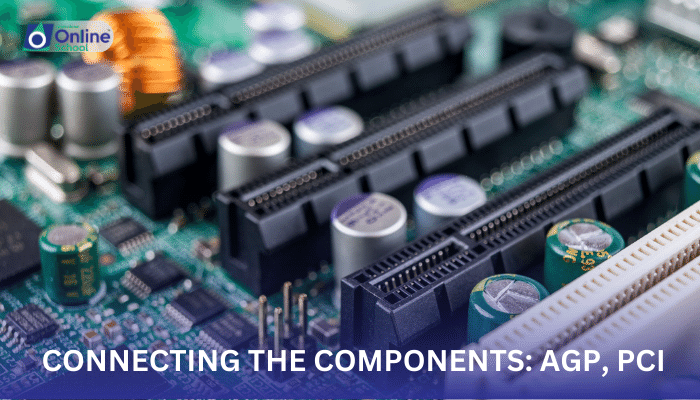
The Peripheral Component Interconnect (PCI) is a versatile expansion bus that allows for the connection of a wide range of peripheral devices, including network cards, sound cards, and storage controllers. It is a widely used interface due to its flexibility and compatibility with various hardware components.
iv. IDE: The Connection to Storage Drives: Integrated Drive Electronics (IDE) is a legacy interface that was commonly used to connect storage devices, such as hard disk drives and optical drives. While IDE has been largely replaced by newer and faster interfaces, it still plays a role in older computer systems.
v. Data Transfer Capabilities and Limitations
Each interface possesses its own data transfer capabilities and limitations:
AGP: AGP offers high bandwidth for graphics-intensive tasks, making it ideal for demanding applications.
PCI: PCI provides a balance of speed and flexibility, suitable for a variety of peripheral devices.
IDE: IDE offers slower data transfer rates compared to newer interfaces but remains adequate for basic storage needs.
vi. Impact on System Performance
The choice of interface can significantly impact overall system performance:
Graphics-heavy applications: AGP can enhance the performance of graphics-intensive tasks by providing faster data transfer to the graphics card.
Peripheral device compatibility: PCI's versatility ensures compatibility with a wide range of peripheral devices.
Storage performance: Newer interfaces offer faster data transfer rates for storage devices, improving overall system responsiveness.
AGP, PCI, and IDE represent essential interfaces that play crucial roles in connecting hardware components and enabling data transfer within a computer system. Understanding their functions, capabilities, and limitations empowers users to make informed decisions about hardware upgrades and optimize system performance. By comprehending the intricacies of computer interfaces, students gain a deeper appreciation for the intricate workings of computers and the interconnectedness of their components.
